
Appearance
Pipeline scheduling
This article explains the Schedule step of the New Pipeline wizard: how to set a recurring schedule for a pipeline from the UI, what each frequency produces, and how the schedule is implemented end to end (UI → middleware → Airflow).
Note
This document was generated from the DataNature scheduling reference. Screenshots are embedded from the images folder next to this file; any not yet added appear as a labelled placeholder.
Overview
A schedule is an optional, per-pipeline recurring trigger. Each pipeline can have at most one schedule (1:1). When enabled and the pipeline is deployed, Airflow fires the pipeline's ingestion run automatically on the chosen cadence — no manual trigger required.
- A schedule only starts firing once the pipeline is deployed. Setting one on a draft pipeline is fine; it activates at deploy time.
- You can set or change the schedule later from the pipeline's Edit schedule action — you are not locked into the wizard choice.
Set a schedule during pipeline creation
Step 1 — Start a new pipeline
On the Pipelines page, select + New Pipeline (top-right).

Figure 1: The + New Pipeline button on the Pipelines page.
Work through the wizard in order — Basics → Connection → Schema → Tables — then reach step 5, Schedule.
Step 2 — Enable the schedule
By default a new pipeline has no schedule. Select Enable a schedule for this pipeline to reveal the schedule controls. Leave it cleared if you only want to trigger the pipeline manually.
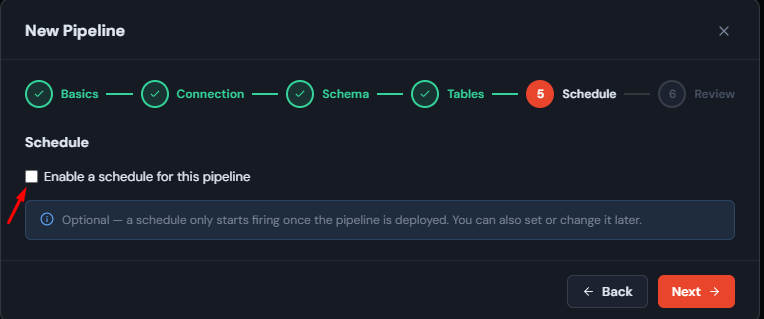
Figure 2: Step 5 with scheduling not yet enabled.
Step 3 — Choose the cadence
With the schedule enabled you get a builder: pick a frequency under Every, fill in the fields it reveals, and choose a timezone. The generated cron expression appears live when Show cron syntax is selected.
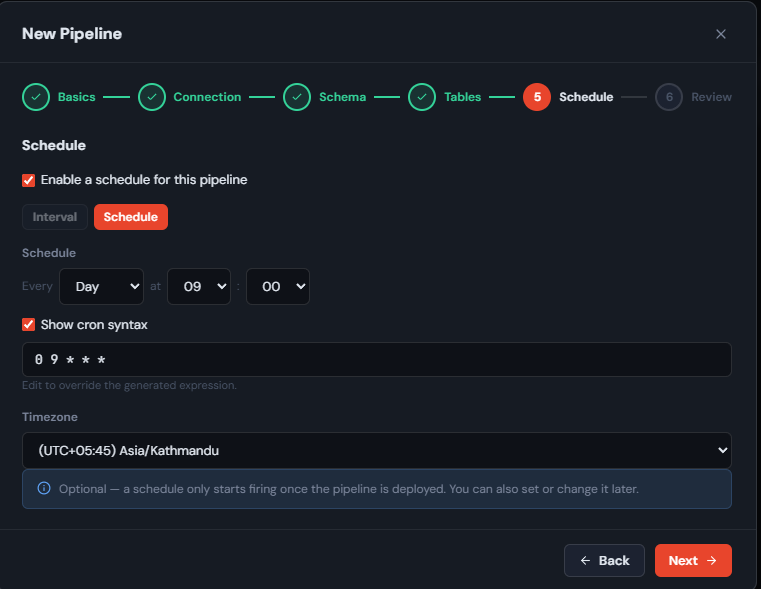
Figure 3: A daily schedule at 09:00 with the generated cron shown.
The Every dropdown offers five frequencies — Hour, Day, Week, Month, Year.
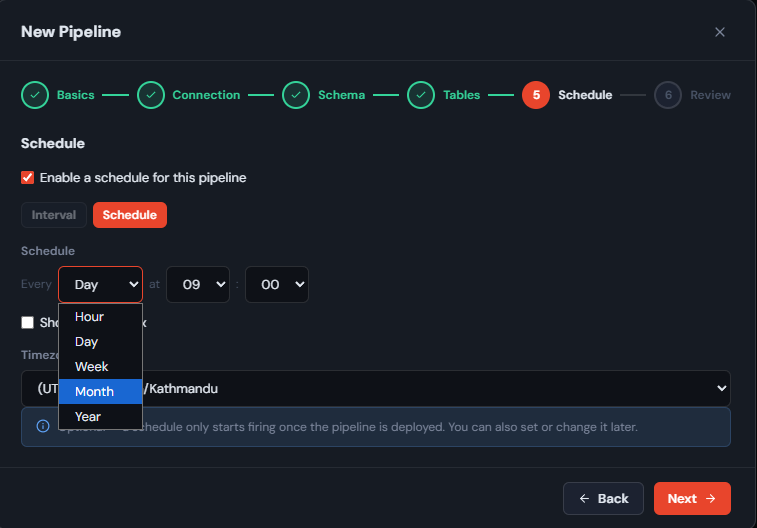
Figure 4: The available scheduling frequencies.
Frequency options
Each frequency shows only the sub-controls it needs and builds a standard 5-field cron expression (minute hour day-of-month month day-of-week). Fields are numeric under the hood; names such as Monday or January are shown only for readability.
| Frequency | You choose | Example selection | Generated cron |
|---|---|---|---|
| Hourly | minute past the hour | at 05 minutes | 5 * * * * |
| Daily | hour + minute | at 09:00 | 0 9 * * * |
| Weekly | weekday + hour + minute | Monday at 09:00 | 0 9 * * 1 |
| Monthly | day-of-month + hour + minute | day 8 at 07:59 | 59 7 8 * * |
| Yearly | month + day + hour + minute | January 8 at 07:00 | 0 7 8 1 * |
Reading the controls left to right:
- Hourly — "Every Hour at MM minutes past the hour." The hour field is hidden (it runs every hour).
- Daily — "Every Day at HH:MM."
- Weekly — "Every Week on
<weekday>at HH:MM." Weekday values are Sunday–Saturday (cron0–6, Sunday =0). - Monthly — "Every Month on day
<DOM>at HH:MM." - Yearly — "Every Year in
<month>on day<DOM>at HH:MM."
Important — day of month is capped at 1–28
For Monthly and Yearly, the day-of-month picker offers only 1–28. Days 29–31 silently skip months that don't have them (a "31st" schedule never fires in February), so capping at 28 guarantees the schedule fires every month/year. The hint "1–28 (avoids months without day 29–31)" appears under the control.
Timezone
The Timezone dropdown lists the available timezones (sourced from the middleware's GET /timezones endpoint). The cron is interpreted in this timezone — so Asia/Kathmandu (UTC+05:45) at 09:00 fires at 09:00 Nepal time, not UTC. Choose the timezone your business day aligns to; Asia/Kathmandu is the default.
Show cron syntax and manual override
Select Show cron syntax to reveal the generated cron string. Two uses:
- Read-only check — confirm the builder produced what you expect before saving.
- Manual override — edit the cron box directly for an expression the builder can't express (for example
*/15 * * * *, ranges, or lists). Once you hand-edit the box, the dropdowns stop overwriting it and the exact text you typed is saved. Any valid croniter expression is accepted.
TIP
When you reopen a schedule, the builder tries to recognise the stored cron and restore the friendly controls. If it can't match one of the five supported patterns, it opens the cron box in manual mode with the raw expression.
Lifecycle
- Deploy-gated. A schedule only produces a live scheduling DAG once the pipeline is deployed. A disabled schedule (or a draft/paused pipeline) has its scheduling DAG removed, so it never fires.
- Enable / disable — toggling
enabledpublishes or removes the scheduling DAG without deleting the stored row, so re-enabling restores it. - Delete —
DELETE …/scheduleremoves both the row and the scheduling DAG.
Quick reference
| Task | How |
|---|---|
| Add a schedule at create | Wizard step 5 → Enable a schedule → pick frequency + timezone |
| Change it later | Pipeline row → Edit schedule |
| Turn it off temporarily | Clear Enable (keeps the row), or Delete to remove entirely |
| Custom cadence | Show cron syntax → edit the cron box directly |
| When does it start | After the pipeline is deployed |